Mastering VR Controller Tracking: A 5-Step Troubleshooting Guide for US Users
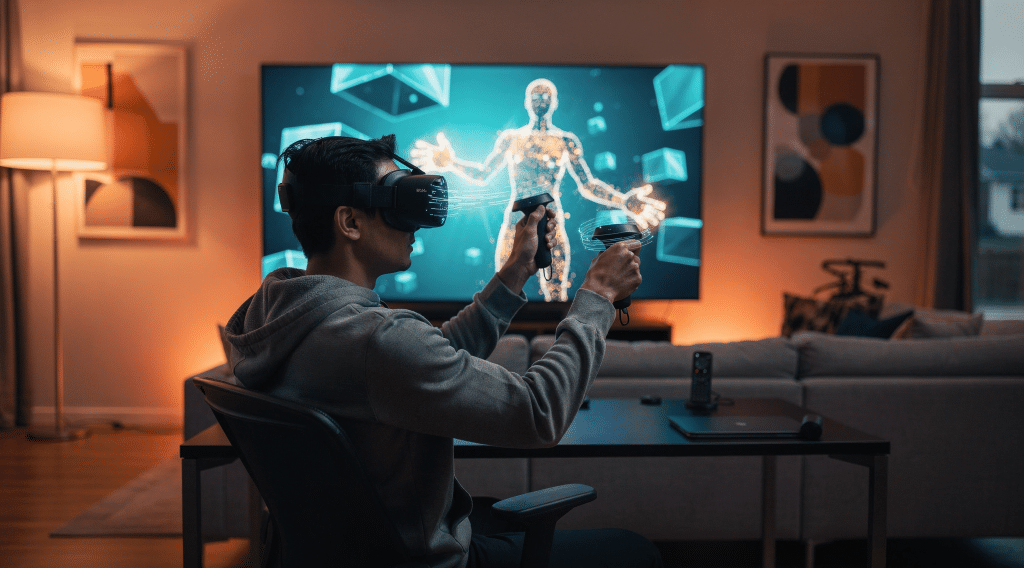
Virtual reality offers an unparalleled escape into digital worlds, but nothing breaks the immersion faster than faulty VR controller tracking. For US users, understanding how to diagnose and resolve these common issues is crucial for an uninterrupted and enjoyable experience. Whether you’re battling an alien horde, sculpting a masterpiece, or simply exploring a serene landscape, precise controller input is paramount. This comprehensive 5-step troubleshooting guide will walk you through the most effective solutions to get your VR controllers back on track, ensuring your virtual adventures remain seamless and captivating.
From environmental interferences to software glitches and hardware malfunctions, the causes of poor VR controller tracking can be diverse. We’ll delve into each potential culprit, providing actionable advice and practical steps you can take from the comfort of your home. No need to be a tech wizard; our guide is designed to be user-friendly and accessible, empowering you to tackle these problems head-on. Let’s reclaim your virtual freedom and ensure your VR experience is nothing short of spectacular.
Solving Common VR Controller Tracking Issues: A 5-Step Troubleshooting Guide for US Users (PRACTICAL SOLUTIONS)
The magic of virtual reality hinges on seamless interaction. When your VR controller tracking falters, that magic quickly dissipates, replaced by frustration and broken immersion. This guide is specifically tailored for US users facing these challenges, offering a structured approach to identify and fix the most prevalent tracking problems. We’ll cover everything from basic environmental checks to advanced software and hardware diagnostics, ensuring you have all the tools to restore your VR experience to its full potential.
Step 1: Environmental Assessment and Optimization for Flawless VR Controller Tracking
Often, the simplest solutions are the most effective. Many VR controller tracking issues stem directly from your physical play space. VR systems, whether inside-out tracking (like Oculus Quest or Pico) or outside-in tracking (like Valve Index or older HTC Vive with base stations), rely heavily on their surroundings to accurately pinpoint your controllers’ positions. Before diving into complex diagnostics, take a moment to evaluate and optimize your environment.
Lighting Conditions: The Unsung Hero of VR Tracking
Both too much and too little light can wreak havoc on VR controller tracking. Inside-out tracking systems, which use cameras on the headset to ‘see’ the controllers, can be overwhelmed by direct sunlight or extremely bright artificial lights, causing the cameras to white out and lose sight of the tracking markers. Conversely, a dimly lit room can make it difficult for the cameras to detect these markers at all.
- Avoid Direct Sunlight: If possible, play in a room where direct sunlight doesn’t hit your play area. Close blinds or curtains if necessary.
- Moderate, Consistent Lighting: Aim for well-diffused, consistent lighting. Overhead lights are generally better than harsh spotlights. Indirect lighting can also be very effective.
- Infrared (IR) Interference: Be aware of other IR-emitting devices in your play area, such as remote controls, smart home sensors, or even some Christmas lights. These can confuse VR systems that rely on IR for tracking (e.g., base stations). Try turning off or relocating such devices if you suspect interference.
Reflective Surfaces: The Hidden Enemy
Reflective surfaces are notorious for confusing VR controller tracking systems. Mirrors, glass tables, shiny floors, and even highly polished metallic objects can reflect the IR light emitted by controllers or base stations, creating ghost images or disrupting the tracking algorithms. This can lead to your controllers drifting, jumping, or losing tracking entirely.
- Cover or Remove Reflective Objects: The easiest solution is to remove these items from your play space. If removal isn’t an option, cover them with blankets, towels, or non-reflective tape during your VR sessions.
- Check for Windows: Large windows can sometimes act as reflective surfaces, especially at certain angles or times of day. Closing curtains or blinds can mitigate this.
Clear Play Space: More Than Just Safety
While clearing your play space is primarily for safety, it also plays a role in VR controller tracking. Clutter can block the line of sight between your headset/base stations and controllers. For inside-out tracking, objects with repetitive patterns (like patterned wallpaper) can sometimes confuse the headset’s spatial tracking, indirectly affecting controller stability.
- Remove Obstructions: Ensure there’s a clear line of sight between your headset’s cameras (for inside-out) or your base stations (for outside-in) and your controllers at all times.
- Introduce Unique Visual Cues: For inside-out tracking, having some unique, non-repetitive objects or furniture in your play space can help the system establish a stable spatial map.
Minimum Play Space Requirements
Each VR system has recommended minimum play space dimensions. Attempting to play in too small an area can lead to frequent boundary warnings and potential tracking glitches as controllers approach the edges of the defined space.
- Consult Your Headset Manual: Always refer to your specific VR headset’s documentation for recommended play space dimensions.
- Recalibrate Boundaries: After optimizing your environment, always recalibrate your play space boundaries (e.g., Guardian system for Meta Quest, Chaperone for SteamVR) to ensure the system accurately maps your newly optimized area.
Step 2: Power and Connectivity Checks for Stable VR Controller Tracking
Once your environment is optimized, the next logical step in troubleshooting VR controller tracking issues is to examine the power and connectivity of your controllers and headset. Many seemingly complex tracking problems can be resolved by simply addressing these fundamental elements.
Battery Health: The Lifeline of Your Controllers
Low or failing batteries are a surprisingly common cause of erratic VR controller tracking. As battery power dwindles, the controllers may struggle to maintain a stable connection or accurately emit their tracking signals.
- Replace or Recharge Batteries: If your controllers use disposable batteries (e.g., AA or AAA), replace them with fresh, high-quality ones. If they have rechargeable internal batteries, ensure they are fully charged before each session. Don’t rely solely on the battery indicator; sometimes it can be inaccurate.
- Check Battery Contacts: For disposable batteries, ensure the contacts in the battery compartment are clean and free of corrosion. Gently clean them with a cotton swab and rubbing alcohol if necessary.
- Consider Rechargeable Options: Investing in good quality rechargeable batteries and a reliable charger can save money and reduce waste in the long run, while also ensuring consistent power for your controllers.
Wireless Interference: The Invisible Disruptor
VR controllers communicate wirelessly with your headset or PC, often using Bluetooth or proprietary wireless protocols. Other wireless devices in your home can interfere with this communication, leading to dropped signals or lag in your VR controller tracking.
- Reduce Wireless Clutter: If possible, temporarily turn off other Bluetooth devices, Wi-Fi routers (if not essential for VR), or wireless headphones in the immediate vicinity of your play space.
- USB Port Placement (PC VR): For PC VR setups using USB dongles for controllers (like early Oculus Rift or HTC Vive), ensure the dongle is plugged into a high-quality USB 3.0 port directly on your motherboard (rear ports are usually best). Avoid using front panel USB ports or unpowered USB hubs, which can have insufficient bandwidth or power.
- Move Close to Receiver: For some systems, being too far from the headset or PC’s receiver can cause signal degradation. Try playing closer if your setup allows.
Firmware and Software Updates: Staying Current
Manufacturers constantly release firmware updates for headsets and controllers, as well as software updates for their VR platforms. These updates often contain critical bug fixes and performance improvements that can directly address VR controller tracking issues.
- Update Headset Firmware: Connect your headset to Wi-Fi (for standalone) or your PC (for PC VR) and check for the latest firmware updates. Follow the manufacturer’s instructions carefully.
- Update Controller Firmware: Controllers often have their own separate firmware. Ensure these are also up to date. This is typically done through the headset’s settings or the companion PC software.
- Update VR Platform Software: Ensure your SteamVR, Oculus/Meta app, or other VR platform software is running the latest version.
- Update Graphics Drivers: While not directly related to controller firmware, outdated graphics drivers can cause overall system instability that might indirectly affect tracking performance. Keep your GPU drivers updated.
Step 3: Recalibration and Resetting for Optimal VR Controller Tracking
When environmental tweaks and power checks don’t resolve your VR controller tracking woes, it’s time to consider recalibration and system resets. These steps can often correct software-based glitches or misconfigurations that lead to erratic tracking behavior.
Recalibrate Your Play Space Boundaries
The boundary system (Guardian, Chaperone, etc.) is fundamental to how your VR system understands your physical space. If this calibration is off, your controllers might struggle to maintain accurate positions within the virtual world.
- Perform a Full Boundary Setup: Don’t just adjust; perform a complete re-setup of your play space boundaries. This forces the system to re-scan and remap your environment from scratch.
- Ensure Accuracy: When tracing your boundary, be as precise as possible. Walk slowly and deliberately, ensuring the system accurately captures the edges of your safe play area.
- Confirm Floor Height: Incorrect floor height calibration can lead to controllers appearing to float or sink. Double-check that your floor height is set correctly during the boundary setup process.
Restart Everything: The Universal Fix
It’s an age-old IT adage for a reason: turning it off and on again often works. A simple restart can clear temporary software bugs, refresh connections, and resolve minor conflicts that might be affecting your VR controller tracking.
- Restart Headset: Power down your VR headset completely, wait a few seconds, and then power it back on. For PC VR, also restart your PC.
- Restart Controllers: Power off your controllers (if they have a power button) or remove and reinsert their batteries.
- Restart VR Software: Close and reopen your VR platform software (e.g., SteamVR, Oculus app) on your PC.
Re-pair Controllers
Sometimes the wireless pairing between your controllers and your headset/PC can become corrupted. Re-pairing them can establish a fresh, stable connection.
- Unpair and Re-pair: Consult your headset’s manual for specific instructions on how to unpair and then re-pair your controllers. This usually involves going into the headset’s settings or the companion app.
- One Controller at a Time: If you’re having trouble with both, try focusing on one controller first to ensure it pairs correctly before attempting the second.
Clear Guardian/Chaperone History (Advanced)
For persistent issues, especially if you frequently move your VR setup between different locations, the system’s stored environment data might be causing conflicts. Clearing this history forces the system to create a completely new map.
- Meta Quest: In the headset, navigate to Settings > Guardian > Clear Guardian History.
- SteamVR: This is a bit more involved. You might need to navigate to SteamVR settings > Developer > Reset Seated Position & Standing Position, or in more extreme cases, delete certain configuration files (e.g.,
chaperone_info.meta) from your SteamVR installation directory. Proceed with caution and back up files if unsure.
Step 4: Hardware Inspection and Maintenance for Durable VR Controller Tracking
If software and environmental adjustments haven’t fixed your VR controller tracking, it’s time to get a bit more hands-on with your hardware. Physical issues can significantly impact tracking performance. This step focuses on inspecting and maintaining your controllers and headset to ensure all components are functioning correctly.
Clean Sensors and Tracking Rings
Dust, dirt, sweat, and smudges can obscure the tracking sensors on your headset and controllers, leading to inaccurate or lost tracking. This is especially true for inside-out tracking systems that rely on visible markers or cameras.
- Headset Cameras/Sensors: Gently wipe the external cameras or sensors on your VR headset with a clean, dry microfiber cloth. Avoid abrasive materials or harsh cleaning solutions.
- Controller Tracking Rings/LEDs: The large rings or areas with visible LEDs on your controllers are crucial for tracking. Ensure they are free from smudges, dirt, or any obstructions. Again, use a microfiber cloth. Be careful not to scratch any reflective surfaces.
- Base Station Lenses (Outside-In Systems): For systems like Valve Index or HTC Vive, ensure the lenses on your base stations are clean and free of dust.
Check for Physical Damage
VR controllers, by their nature, are susceptible to bumps and drops. Even seemingly minor physical damage can affect internal components or tracking emitters.
- Inspect for Cracks or Dents: Carefully examine your controllers for any visible cracks, dents, or signs of impact, especially on the tracking rings or body.
- Loose Components: Gently shake the controllers (don’t overdo it!) to see if you hear any rattling, which might indicate a loose internal component.
- Cable Integrity (PC VR): For tethered VR systems, inspect the headset cable for any kinks, fraying, or damage. A damaged cable can cause intermittent data loss, affecting both headset and controller tracking. Ensure all cable connections are secure at both the PC and headset ends.
Verify Base Station Placement and Stability (Outside-In Systems)
For systems that use external base stations (like Valve Index, HTC Vive), their placement and stability are paramount for accurate VR controller tracking.
- Secure Mounting: Ensure your base stations are securely mounted and not prone to vibrations or shifting. Even slight movements can throw off tracking calibration.
- Line of Sight: Confirm that the base stations have a clear, unobstructed line of sight to each other and to your entire play space, including where your controllers might be positioned (e.g., near the floor or above your head).
- Optimal Angle: Position base stations diagonally opposite each other, typically above head height, angled downwards into the center of your play space. Refer to your system’s manual for recommended angles.
- Sync Cable (if applicable): If your system uses a sync cable between base stations, ensure it’s securely connected and not damaged.
Step 5: Advanced Troubleshooting and Support for Persistent VR Controller Tracking Issues
If you’ve meticulously followed the previous four steps and your VR controller tracking issues persist, it’s time to delve into more advanced solutions or consider reaching out for professional assistance. These steps address less common but potentially more stubborn problems.
Check for Software Conflicts and Background Processes
On PC VR systems, other applications running in the background can sometimes interfere with VR software, consuming resources or creating conflicts that manifest as tracking problems.
- Close Unnecessary Applications: Before launching VR, close any non-essential programs, especially those that are resource-intensive (e.g., video editing software, other games, browsers with many tabs).
- Disable Overlays: Some game overlays (e.g., Discord overlay, NVIDIA GeForce Experience overlay) can sometimes cause issues with VR. Try disabling them temporarily to see if it resolves the tracking problem.
- Antivirus/Firewall: Rarely, overly aggressive antivirus software or firewalls can interfere with VR communication. Temporarily disable them (at your own risk, and only for testing) to see if it makes a difference. Remember to re-enable them afterwards.
USB Port and Driver Issues (PC VR Specific)
For PC VR headsets, the USB connection is vital for data transfer and sometimes power. Issues with USB ports or their drivers can severely impact VR controller tracking.
- Try Different USB Ports: If you’re using a tethered headset, try plugging it into different USB 3.0 or 3.1 ports on your PC, especially those directly on the motherboard (rear ports).
- Update USB Drivers: Go to Device Manager in Windows, locate your USB controllers, and try updating their drivers. Sometimes, rolling back to an older driver version can also help if a recent update caused issues.
- USB Power Management: In Device Manager, for each USB Root Hub, go to Properties > Power Management and uncheck ‘Allow the computer to turn off this device to save power.’ This prevents Windows from cutting power to your VR hardware.
Factory Reset (Last Resort)
A factory reset should be considered a last resort, as it will wipe all your data, games, and settings from your headset. However, it can resolve deeply ingrained software issues that no other troubleshooting step can fix.
- Backup Data: If your headset allows it, back up any important game saves or data before performing a factory reset.
- Follow Manufacturer Instructions: The process for a factory reset varies by headset. Consult your specific device’s manual or support website for precise instructions.
Contacting Customer Support
If all else fails, it’s time to leverage the expertise of the manufacturer’s customer support. They can offer more specific diagnostics, advanced troubleshooting steps, or guide you through warranty claims if a hardware defect is suspected.
- Gather Information: Before contacting support, have all your troubleshooting steps documented, including what you’ve tried and the results. Note your headset’s serial number, firmware versions, and controller models.
- Be Patient and Detailed: Provide as much detail as possible about the issue and your setup. Patience is key, as diagnosis can sometimes take time.
- Warranty Check: If your device is still under warranty, be prepared to provide proof of purchase.
Preventative Measures to Maintain Excellent VR Controller Tracking
While troubleshooting is crucial when problems arise, adopting preventative measures can significantly reduce the likelihood of encountering VR controller tracking issues in the first place. A little proactive care goes a long way in ensuring your VR experiences remain consistently smooth and immersive.
Consistent Play Space Management
One of the most effective preventative measures is to maintain a consistent and optimized play space. Avoid making drastic changes to your VR environment between sessions.
- Designated VR Area: If possible, designate a specific area in your home solely for VR. This minimizes the need to constantly re-map boundaries and reduces environmental variables.
- Minimize Clutter: Keep your VR space clear of unnecessary objects that could interfere with tracking or pose a safety hazard.
- Control Lighting: Always check and adjust your lighting conditions before starting a VR session. Aim for consistent, diffused light that avoids direct sunlight or harsh spotlights.
- Cover Reflective Surfaces: If you have mirrors or glass in your VR area, make it a habit to cover them before you play.
Regular Cleaning and Inspection
Dust, grime, and minor physical wear and tear can accumulate over time, degrading VR controller tracking performance. Regular cleaning and inspection can catch these issues before they become major problems.
- Microfiber Cloth for Lenses and Sensors: Make it a habit to gently wipe down your headset lenses, external cameras, and controller tracking rings with a clean, dry microfiber cloth before and after each session. This removes smudges, dust, and oils that can obscure sensors.
- Inspect for Damage: Periodically check your controllers and headset for any signs of physical damage, loose parts, or fraying cables. Addressing minor issues early can prevent them from escalating.
- Battery Contacts: If using disposable batteries, occasionally check the battery contacts for corrosion and clean them if necessary.
Keep Software and Firmware Updated
Manufacturers continuously release updates to improve performance, fix bugs, and introduce new features. Staying current with these updates is vital for optimal VR controller tracking.
- Enable Automatic Updates: Where possible, enable automatic updates for your VR headset, controllers, and PC VR software (e.g., SteamVR, Meta Quest app).
- Check Manually: Even with automatic updates, it’s good practice to periodically check for updates manually, especially if you notice any new issues.
- Graphics Drivers: Regularly update your graphics card drivers. While not directly part of the VR system, outdated drivers can lead to overall system instability that might indirectly affect tracking.
Proper Storage of Equipment
How you store your VR equipment when not in use can impact its longevity and performance, including VR controller tracking.
- Protect from Dust and Light: Store your headset and controllers in a clean, dust-free environment, away from direct sunlight. Many headsets come with protective covers or cases; use them!
- Avoid Extreme Temperatures: Don’t leave your VR gear in places subject to extreme temperature fluctuations, like a hot car or a very cold garage.
- Cable Management: For tethered systems, store cables neatly to prevent kinks or damage. Avoid tightly wrapping cables, which can stress internal wires.
Mindful Usage
How you interact with your VR system during play can also contribute to its longevity and tracking accuracy.
- Respect Boundaries: Always stay within your established play space boundaries to avoid hitting walls or furniture, which can damage controllers or the headset.
- Gentle Handling: While controllers are designed to be used actively, avoid excessive force or throwing them.
- Take Breaks: Long VR sessions can sometimes lead to minor tracking drift as components heat up or if your environment subtly changes. Taking short breaks can allow systems to cool down and re-stabilize.
By integrating these preventative measures into your VR routine, you can significantly reduce the frequency and severity of VR controller tracking issues, ensuring a more reliable and enjoyable virtual reality experience for years to come. Proactive care is the best defense against frustrating technical glitches.
Conclusion: Reclaiming Your Immersive VR Experience with Perfect VR Controller Tracking
Navigating the occasional hiccup in your virtual reality journey is part of the experience, but persistent VR controller tracking issues shouldn’t be. By systematically working through this 5-step troubleshooting guide, US users are now equipped with a powerful arsenal of practical solutions to diagnose and rectify the most common tracking problems. From optimizing your physical play space and ensuring robust power and connectivity to performing crucial recalibrations and conducting thorough hardware inspections, you’ve learned how to address these challenges head-on.
We’ve emphasized the importance of a well-lit, clutter-free environment, the critical role of fresh batteries and stable wireless connections, and the necessity of keeping all your VR software and firmware up to date. Furthermore, we delved into advanced diagnostics for those stubborn issues and highlighted when to seek professional support. Beyond just fixing problems, we’ve also outlined preventative measures – from regular cleaning to mindful usage and proper storage – to ensure your VR controller tracking remains consistently excellent, minimizing future interruptions.
The goal of virtual reality is to transport you to another world, making you forget the physical one around you. Flawless VR controller tracking is the invisible bridge that connects your intentions to the virtual actions, enabling that profound sense of presence and immersion. With the knowledge and techniques gained from this guide, you can confidently step back into your favorite VR games and applications, knowing that your controllers will respond with precision and reliability. Enjoy your revitalized virtual adventures!