

In the rapidly evolving landscape of virtual reality, VR review apps have become indispensable tools for enthusiasts, developers, and everyday users alike. They offer platforms to explore, critique, and share experiences within the metaverse, from immersive games to productivity suites. However, nothing sours a potentially groundbreaking VR experience faster than frustrating performance issues. Lag, stuttering, dropped frames, and crashes can turn an exciting virtual journey into a headache-inducing ordeal. As we step into 2026, the demand for seamless and high-fidelity VR experiences is higher than ever, making effective troubleshooting of VR app performance critical.
This comprehensive guide is designed to equip you with practical solutions to common performance problems encountered in four of the most popular VR review applications. We’ll delve into the underlying causes of these issues and provide step-by-step remedies to get your virtual world running smoothly again. Whether you’re a seasoned VR veteran or a newcomer, understanding how to optimize your VR setup and applications is key to unlocking the full potential of this incredible technology. Let’s dive in and transform your problematic VR experiences into perfectly polished ones.
Understanding Common VR App Performance Bottlenecks
Before we tackle specific solutions, it’s crucial to understand why VR app performance issues occur. Virtual reality demands significant computational power from your hardware. Unlike traditional gaming or desktop applications, VR requires rendering two slightly different images (one for each eye) at a very high frame rate (typically 90Hz or more) with extremely low latency to prevent motion sickness and maintain immersion. Any hiccup in this pipeline can manifest as a performance problem.
Hardware Limitations
The most common culprit behind poor VR app performance is insufficient hardware. Your GPU (Graphics Processing Unit) is the workhorse for rendering VR environments. An underpowered GPU will struggle to maintain the required frame rates, leading to stuttering. Similarly, an older CPU (Central Processing Unit) can bottleneck the GPU by not feeding it data fast enough. Insufficient RAM can also cause performance dips, especially when running multiple applications or highly detailed VR experiences. Ensuring your system meets or exceeds the recommended specifications for your VR headset and the specific VR review apps you use is the foundational step in troubleshooting.
Software Inefficiencies and Conflicts
Even with top-tier hardware, software can introduce performance issues. This includes:
- Outdated Drivers: Graphics card drivers are constantly updated to improve performance and compatibility. Running old drivers is a common cause of poor VR performance.
- Operating System Issues: Background processes, outdated Windows versions, or conflicting software can consume valuable system resources.
- VR Runtime and Platform Issues: The software that powers your VR headset (e.g., SteamVR, Oculus/Meta Quest Link software) needs to be up-to-date and correctly configured.
- App-Specific Bugs: Sometimes, the VR review app itself might have unoptimized code or bugs that cause performance issues. Developers usually release patches, so keeping apps updated is important.
- Graphical Settings: Running VR apps at settings too high for your system can drastically impact performance.
Environmental Factors
While less common for raw performance, environmental factors can impact the perceived smoothness and overall experience:
- Interference: USB bandwidth issues, Wi-Fi interference (for wireless VR), or even physical obstacles can disrupt tracking and lead to perceived performance problems.
- Overheating: Your PC components, especially the GPU, can throttle performance if they get too hot to prevent damage. Good airflow and cooling are essential.
General Troubleshooting Steps for Optimal VR App Performance
Before diving into app-specific solutions, let’s cover some universal steps that can resolve a majority of VR app performance issues across the board.
1. Update Everything
This cannot be stressed enough. Updates often include critical performance optimizations and bug fixes.
- Graphics Drivers: Always keep your GPU drivers (NVIDIA, AMD) updated to the latest stable version. Use the official software (GeForce Experience, AMD Radeon Software) for this.
- Windows/macOS: Ensure your operating system is fully updated.
- VR Headset Software: Update your headset’s firmware and associated PC software (e.g., Meta Quest App, SteamVR, Vive Console).
- VR Review Apps: Make sure all your VR review applications are updated to their latest versions.
2. Monitor Your System Resources
Tools like Task Manager (Windows) or dedicated monitoring software (e.g., MSI Afterburner, HWMonitor) can help identify bottlenecks. Pay attention to CPU usage, GPU usage, RAM usage, and GPU VRAM usage while running a VR app. If any of these are consistently at 90-100%, that’s likely your bottleneck.
3. Adjust VR Settings
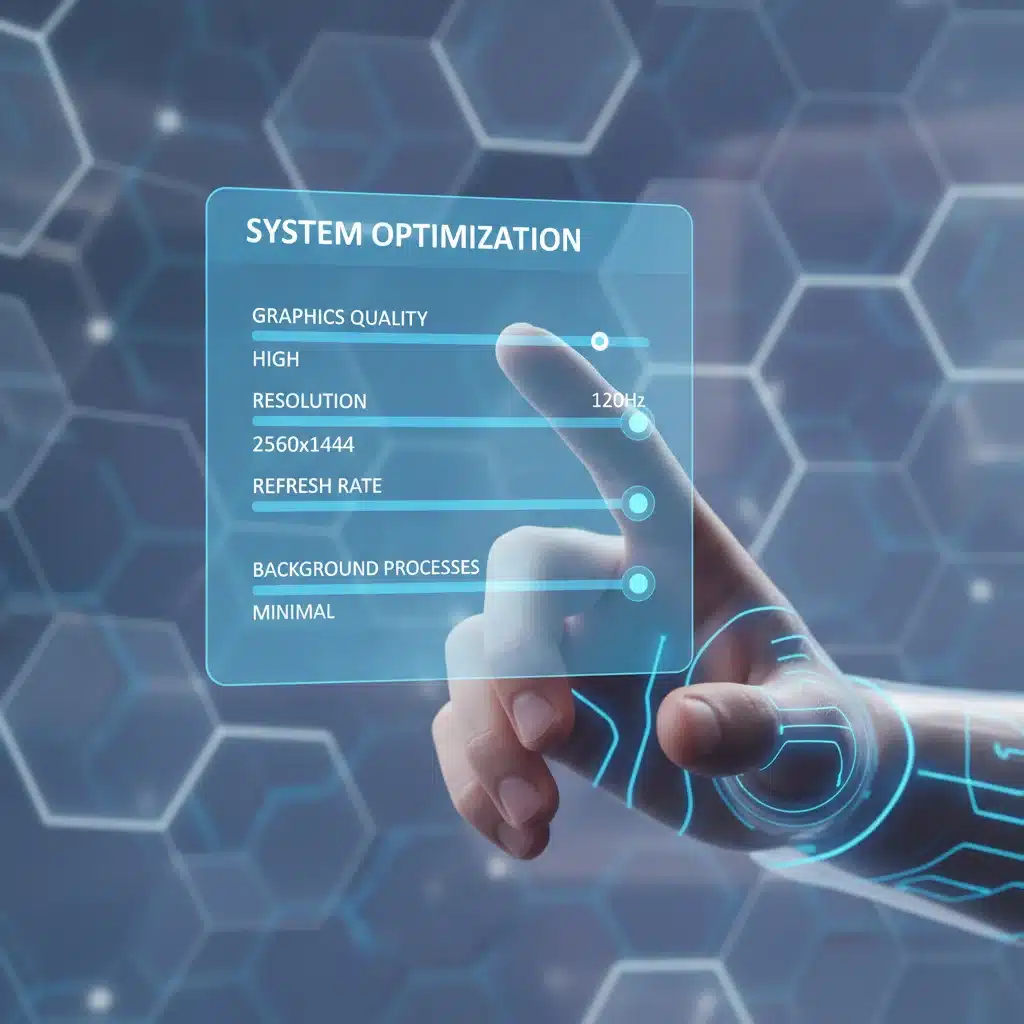
- Render Resolution/Supersampling: This is the most impactful setting. While higher resolution looks better, it’s extremely demanding. Reduce it if you’re experiencing stuttering. Start with your headset’s native resolution and only increase if performance is smooth.
- Refresh Rate: Lowering your headset’s refresh rate (e.g., from 120Hz to 90Hz or 72Hz) can significantly reduce the load on your GPU.
- Graphics Quality Presets: Most VR apps have graphical presets (Low, Medium, High, Ultra). Start with Medium or High and adjust as needed.
- Asynchronous Spacewarp (ASW)/Motion Smoothing: These technologies (Oculus/Meta and SteamVR, respectively) can help maintain a smooth experience by generating synthetic frames if your system can’t hit the target frame rate. Ensure they are enabled, but be aware they can introduce minor visual artifacts.
4. Optimize Your PC Environment
- Close Background Applications: Any non-essential program running in the background consumes CPU, RAM, and GPU resources. Close browsers, chat apps, and other software before launching VR.
- Power Settings: Ensure your PC’s power plan is set to ‘High Performance’ (Windows).
- Overheating: Clean your PC’s fans and ensure good airflow. Monitor temperatures during VR sessions.
- USB Ports: If using a wired headset, try different USB 3.0/3.1 ports. Avoid using USB hubs if possible, or use powered ones.
- Wireless VR Optimization: For headsets like Meta Quest, ensure your Wi-Fi router is 5GHz or Wi-Fi 6, in the same room as your play space, and ideally dedicated to VR traffic. Minimize other devices on the network.
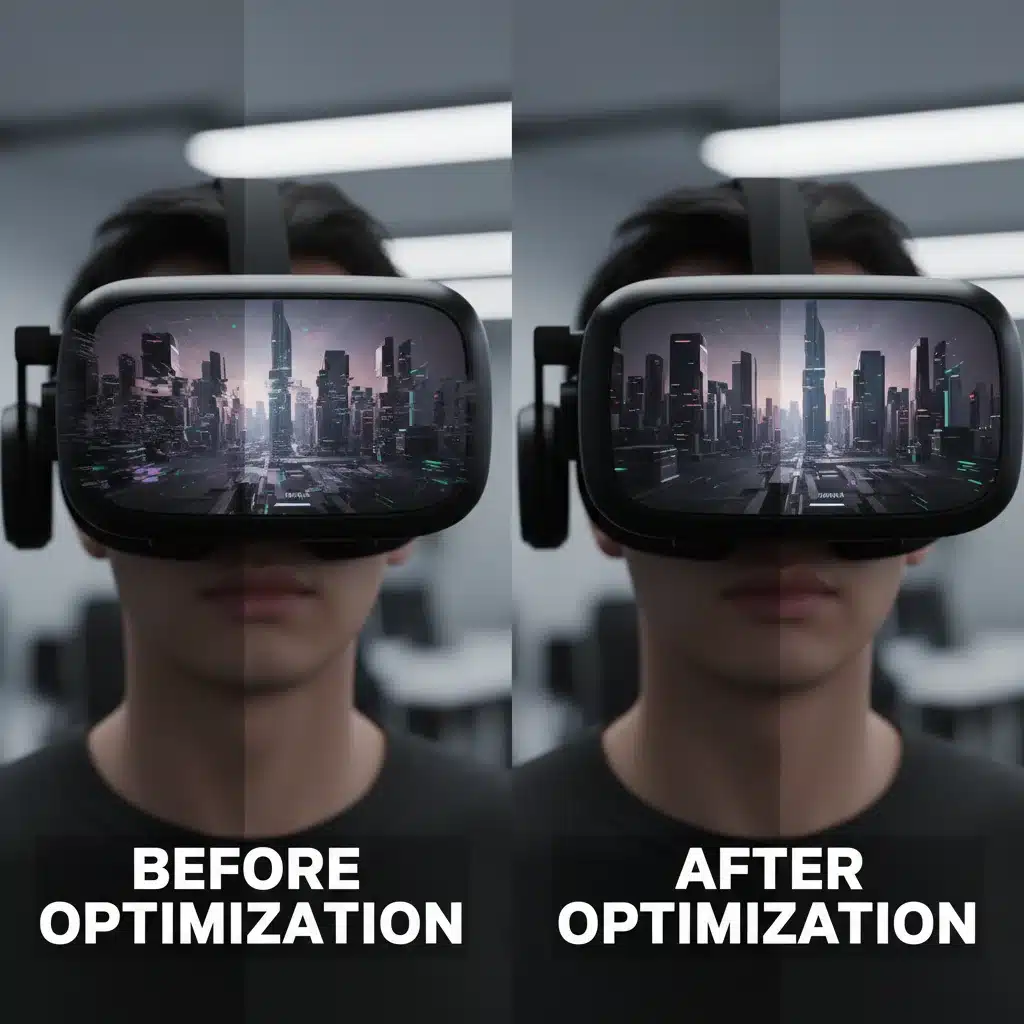
Troubleshooting Performance in 4 Popular VR Review Apps (2026 Edition)
Now, let’s get specific. While the general tips above cover a lot of ground, certain VR review apps might have unique quirks or common issues. We’ll focus on four hypothetical but representative popular VR review platforms prevalent in 2026.
1. Meta Horizon Worlds (Review Hub Integration)
Meta Horizon Worlds, evolving into a central hub for social VR and integrated review experiences, can be demanding due to its expansive, user-generated content. Performance issues here often stem from complex environments or network latency.
Common Issues:
- Stuttering in Populated Areas: High polygon counts from multiple avatars and complex user-created scenes.
- Loading Delays: Slow texture streaming or network bottlenecks when entering new worlds.
- Audio Desync: Especially in social spaces with many active microphones.
Specific Solutions:
- Lower Graphics Quality in Horizon Settings: Within Horizon Worlds, there are often in-app settings for visual quality. Reduce avatar detail, object complexity, or draw distance.
- Check Network Stability: A stable, low-latency internet connection is crucial. Use a wired Ethernet connection for your PC if playing PCVR, or ensure your Quest is on a strong 5GHz Wi-Fi signal. Test your internet speed and ping.
- Clear Cache: Sometimes, corrupted cached data can cause issues. For Quest headsets, you might need to clear the cache via the headset’s settings or even reinstall the app. For PCVR, clear the app’s cache in your AppData folder.
- Reduce Concurrent Apps: If you have other Meta apps running in the background (e.g., Messenger integration), close them if not needed.
2. SteamVR Home (Community Review Section)
SteamVR Home, often customized with user-created environments and serving as a gateway to community reviews, can suffer from performance hits due to custom assets and a heavy underlying SteamVR process.
Common Issues:
- High CPU Usage: Even when idle in SteamVR Home, it can consume more resources than expected.
- Choppy Movement: Especially when navigating complex custom environments or viewing many user-generated review displays.
- Crashes on Launch: Often related to conflicting overlays or corrupted SteamVR files.
Specific Solutions:
- Disable Custom Environments: If you suspect a custom environment is too demanding, switch back to a default SteamVR Home environment.
- Simplify Your Home Space: Remove unnecessary items, props, or complex lighting setups from your personal SteamVR Home space.
- Verify Integrity of SteamVR Files: In Steam, right-click on SteamVR > Properties > Local Files > Verify integrity of tool files. This can fix corrupted installations.
- Adjust SteamVR Render Resolution: Open SteamVR settings (from the small SteamVR window on your desktop) and navigate to Video. Lower the ‘Render Resolution’ slider, especially the ‘Custom Resolution Multiplier’.
- Disable Unnecessary Overlays: Overlays from other applications (e.g., Discord, GeForce Experience) can sometimes conflict with SteamVR. Disable them temporarily to test.
3. VRChat (Review & Showcase Worlds)
While primarily a social platform, VRChat is also heavily used for showcasing and reviewing custom content, from avatars to entire worlds. Its open nature means it’s prone to performance issues from unoptimized user-created content.
Common Issues:
- Extreme Frame Drops: In worlds with many highly detailed avatars or complex geometry.
- Long Loading Times: Due to large asset downloads for worlds and avatars.
- Memory Leaks: Prolonged sessions can sometimes lead to increasing RAM usage and eventual crashes.
Specific Solutions:
- Use Performance Options: VRChat has robust in-game performance settings. Use ‘Safety’ settings to hide avatars with poor performance ratings or limit the number of visible avatars.
- Optimize Avatar Download Settings: In VRChat settings, you can choose to not download certain avatar features (e.g., dynamic bones, particle effects) for distant avatars.
- Lower Graphics Settings: Reduce resolution, shader quality, and shadow quality within VRChat’s settings menu.
- Join Less Populated Instances: If a world is too demanding, try finding an instance with fewer users.
- Regularly Restart VRChat: If you experience memory leaks, restarting the application every few hours can help.
- Consider a Client Mod (Use with Caution): Some community-made client modifications aim to improve performance, but use them at your own risk as they can sometimes violate terms of service or introduce instability.
4. Rec Room (Creator Review Rooms)
Rec Room, with its emphasis on user-generated games and review rooms, often runs into performance snags when creators push the limits of its engine with complex circuits, high object counts, and intricate visual effects.
Common Issues:
- Lag Spikes: Especially when entering new areas within a room or when many circuits are active.
- Visual Glitches: Due to complex shaders or lighting not rendering correctly.
- Input Delay: A noticeable delay between physical movement and in-game action.
Specific Solutions:
- Adjust Rec Room Graphics Settings: In Rec Room’s watch menu, go to Settings > Graphics. Lower the ‘Visual Quality’ or ‘Render Scale’.
- Disable Unnecessary Visual Effects: Turn off features like bloom, shadows, or anti-aliasing if available.
- Check Room Performance Stats: Some advanced Rec Room rooms might display performance warnings or statistics. If a room is known to be performance-heavy, your options are limited to lowering your own settings or avoiding that room.
- Ensure Consistent Internet Connection: Like Horizon Worlds, Rec Room is heavily network-dependent. A stable connection minimizes input delay and lag spikes.
- Reinstall Rec Room: If persistent issues occur, a fresh installation can sometimes resolve corrupted files.
Advanced Optimization Techniques for VR App Performance
If the above steps haven’t fully resolved your VR app performance issues, it’s time to consider more advanced optimizations.
GPU Control Panel Settings
Both NVIDIA and AMD offer extensive control panels for their graphics cards. Tweaking these settings can sometimes yield significant improvements.
- Shader Cache: Ensure it’s enabled to speed up shader compilation.
- Power Management Mode (NVIDIA): Set to ‘Prefer maximum performance’.
- Low Latency Mode (NVIDIA): Experiment with ‘On’ or ‘Ultra’ for reduced input lag, though it can sometimes introduce micro-stutters on weaker systems.
- Image Sharpening/FidelityFX (AMD): While these can improve visual quality, they can also impact performance. Disable them if you’re struggling.
- Vertical Sync (V-Sync): Generally, let the VR runtime handle V-Sync. Forcing it on or off in the GPU control panel can sometimes cause issues.
Overclocking (Use with Caution)
Overclocking your CPU or GPU can provide a performance boost, but it comes with risks. It can increase heat generation, reduce component lifespan, and lead to system instability if not done correctly. Only attempt this if you understand the risks and have adequate cooling.
SSD Usage
Ensure your VR games and the operating system are installed on an SSD (Solid State Drive). While it doesn’t directly affect frame rates, it dramatically reduces loading times and can prevent stuttering caused by assets failing to load quickly enough from a traditional HDD.
USB Bandwidth Management
For wired VR headsets, USB bandwidth can be a bottleneck. If you have multiple high-bandwidth USB devices (e.g., external hard drives, high-res webcams), try disconnecting them or moving them to different USB controllers. You can check your USB controller layout in Device Manager.
BIOS/UEFI Settings
Occasionally, system-level settings in your motherboard’s BIOS/UEFI can impact performance. Ensure XMP/DOCP (for RAM speed) is enabled and that CPU virtualization features (like Intel VT-d or AMD-V) are enabled if required by your VR software. Be extremely careful when changing BIOS settings.
The Future of VR App Performance in 2026 and Beyond
As we look beyond 2026, advancements in VR app performance will continue to be driven by several key areas:
- Hardware Evolution: More powerful GPUs and CPUs with dedicated AI cores will offload rendering tasks, leading to more efficient processing.
- Foveated Rendering: This technique, which renders the area you’re looking at in high detail and the periphery in lower detail, will become more common with advanced eye-tracking, significantly reducing rendering load.
- Cloud XR: Offloading complex rendering to powerful cloud servers could democratize high-fidelity VR experiences, making them accessible on less powerful local hardware.
- Software Optimization: VR engines and SDKs will continue to evolve, offering better tools for developers to create optimized content.
- Wireless Technology: Wi-Fi 7 and beyond will offer even lower latency and higher bandwidth for wireless VR, reducing current bottlenecks.
These developments promise a future where VR app performance issues are less frequent and easier to manage, allowing users to fully immerse themselves without technical distractions.
Conclusion: A Smooth Virtual Experience Awaits
Troubleshooting VR app performance can sometimes feel like a daunting task, but by systematically working through potential issues, you can significantly improve your virtual reality experience. From ensuring your drivers are up-to-date to tweaking in-app graphics settings and understanding the specific demands of platforms like Meta Horizon Worlds, SteamVR Home, VRChat, and Rec Room, every step brings you closer to a seamless and immersive journey.
Remember that VR technology is still evolving, and occasional hiccups are part of the landscape. However, with the practical solutions outlined in this 2026 guide, you’re well-equipped to diagnose and resolve most common performance bottlenecks. Don’t let technical difficulties detract from the wonder of virtual reality. Take control of your VR environment, optimize your setup, and dive back into the metaverse with confidence and clarity. Happy reviewing!